How do I invite team members to my Dropcontact account?
The Team page lets you add users to your Dropcontact account by inviting your colleagues, turning it into a multi-user account. The whole team shares the same subscription and the same credits, while each member manages their own enrichments.
To open it, click Team in the left sidebar of your Dropcontact app.
How do I invite a member to my Dropcontact team?
- Click Team in the left sidebar.
- On the Members tab, click Invite member.
- Enter your colleague's email address.
- Choose a role: Member (selected by default) or Admin.
- Click Send invitation.
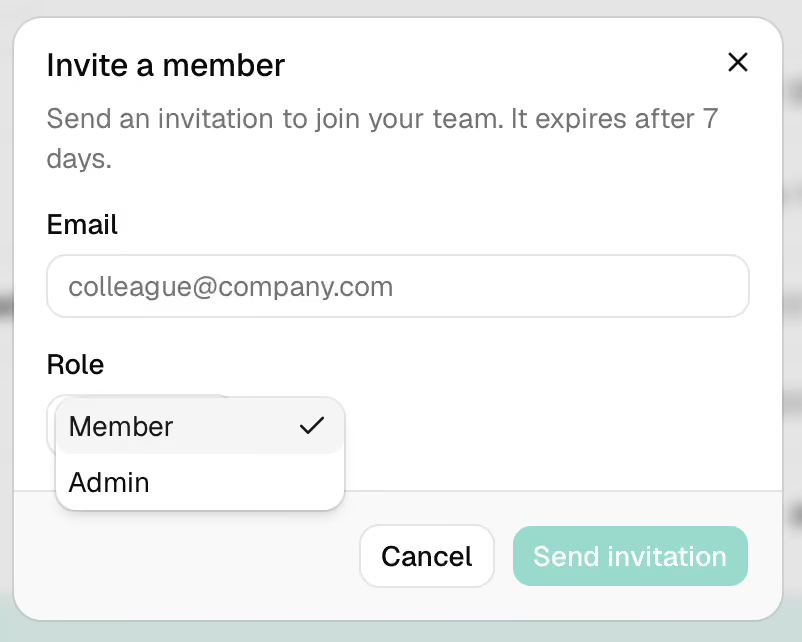
Your colleague receives an email inviting them to join your team. The invitation expires after 7 days and is only valid for the email address you entered.
Until your colleague accepts, they appear in the members list with a Pending invitation label and the invitation's expiry date. Click ... at the end of their row to Copy link and share the invitation directly, or to Cancel invitation.
What happens when a colleague accepts the invitation?
Your colleague clicks Join the team in the invitation email. This opens the Dropcontact app, where they confirm by clicking Accept invitation.
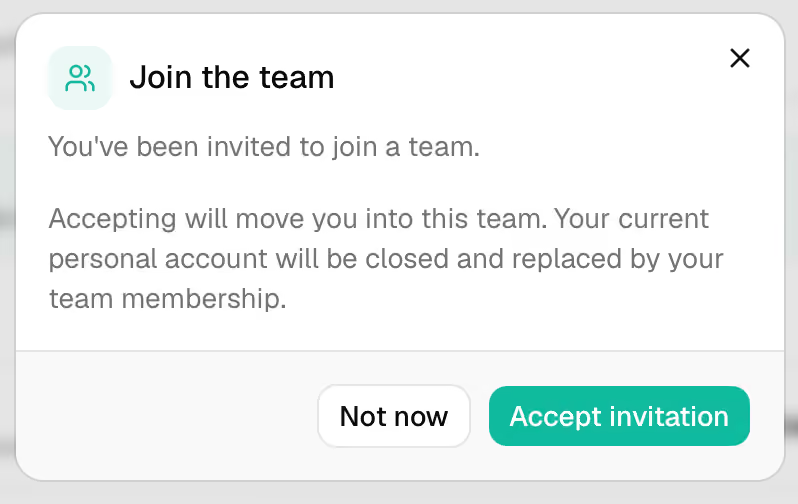
⚠️ If your colleague already has a personal Dropcontact account, accepting the invitation closes that account and replaces it with their team membership. They can click Not now to postpone their decision.
Once they have joined, the member appears in the list with their join date.
What does the team members list show?
The Members tab lists every member with these columns:
- Email: the member's email address, with a Pending invitation label if they have not joined yet.
- Authentication: how the member signs in to Dropcontact (Password, Google or Microsoft). A member can use several methods.
- Joined: the date the member joined, or the expiry date of a pending invitation.
- Role: Admin or Member.
- Invited by: the team member who sent the invitation.
Use the Search members field to find someone quickly in a large team.
💡 CRM subscribers: the Authentication column shows which members have connected their Google or Microsoft mailbox. Every connected mailbox lets Dropcontact extract job titles, phone numbers and LinkedIn profiles from email signatures and clean your CRM automatically.
Admin and Member roles: who can do what
Admins and members share the same subscription and credits, and each member manages their own enrichments. Admins also manage the team, and a team can have several admins.
Admins can:
- Use the team's credits.
- Import files and see their own results.
- See the processed files of the whole team.
- Invite members.
- Change a member's role or remove them from the team.
- Deactivate a member's API tokens and webhooks.
Members can:
- Use the team's credits.
- Import files and see their own results.
Members cannot see other members' processed files, invite people, change roles, or manage other members' API tokens and webhooks.
To download a processed file, see how to recover your file once it has been processed.
How do I change a member's role or remove them from the team?
- On the Members tab, click ... at the end of the member's row.
- Select Change role to switch between Admin and Member, or Remove from team to remove the member.
How do I control a member's API tokens and webhooks?
On the Members tab, click ... at the end of the member's row, then select API tokens & webhooks. From there, you can deactivate or delete any of the member's API tokens, and deactivate their webhooks in the same way.
Each member can have up to 5 active API tokens, and only the member can create new ones. For security, only the start of a token is displayed and the rest cannot be recovered: if a member loses a token, they need to create a new one. See how to use the Dropcontact API key.
How are credits shared between team members?
The plan belongs to the account, not to individual users. Every member you add uses credits from the same balance, with no extra subscription to pay.
Credits are still charged on a Pay On Success basis: a credit is only used when an email is found or verified. Learn more in what a Dropcontact credit is.
If your team needs more credits, you can upgrade your subscription at any time. All members benefit from the new quota immediately.
Comparing plans for your team? See our pricing page.
How do I track my team's credit usage?
The Usage page breaks down your team's credit consumption by service and over time.
On the Files Result page, every file shows the name of the member who imported it, so you can see who processed what.